OTA AT example
This document mainly introduces running on the device Basic AT command set detailed example of the command
Wi-Fi series module OTA upgrade
Set the Wi-Fi working mode of the module and save it to Flash
command:
AT+WMODE=1,1
respond:
OK
Set the module to be connected to the Internet, and the parameters are filled with the Wi-Fi name and Wi-Fi password of the external network
command:
AT+WJAP="Wi-Fi name","Wi-Fi password"
respond:
+EVENT:WIFI_CONNECT

OK
set the firmware upgrade method and firmware address
command:
AT+OTA=2,chencongcc.oss-cn-beijing.aliyuncs.com,443,/bl_OTA-ComboV2.0.0.bin.xz
respond:
OK
start to upgrade
command:
AT+OTA
respond:
OK
demo

OTA upgrade of Bluetooth TB series modules
APP download:
For mobile phones with IOS system, you can search for TelinkBleOTA in the App Store to obtain
Android system mobile phone apk installation package download: Mobile phone apk installation package
OTA upgrade file download: OTA upgrade file

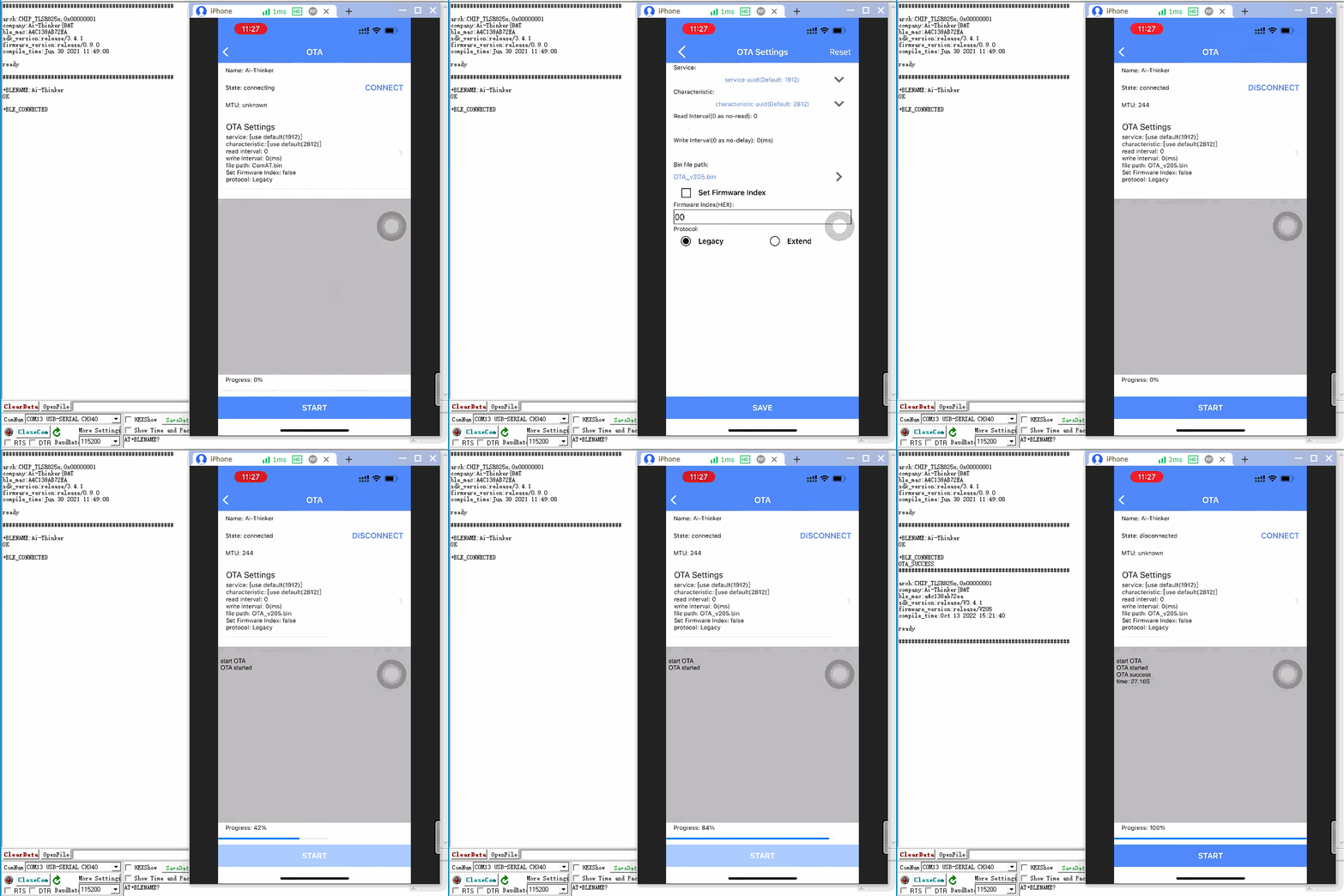
Open the TelinkBleOTA software, set in Filter, limit the rssi value within 60dBm, and then click the refresh button on the main interface to find the corresponding BLE Bluetooth


After finding the corresponding Bluetooth, click the CONNECT button to connect, and +BLE_CONNECTED is printed on the module, indicating that the APP and the module are successfully connected

Click the OTA Settings option to open the Bin file path area to view the OTA file. For the import tutorial of the OTA file, you can click the exclamation mark in the Choose Bin File interface to view it.

After setting the OTA file, click the START button below to upgrade. After the progress bar reaches 100%, the module will return to OTA_SUCCESS, then automatically reset and restart, and print a new version, indicating that the OTA upgrade is successful.
OTA upgrade of Bluetooth PB series modules
APP download:
For mobile phones with IOS system, you can search for PHYOTA in the App Store to obtain
Android system mobile phone apk installation package download: Mobile phone apk installation package
OTA upgrade file download: OTA upgrade file

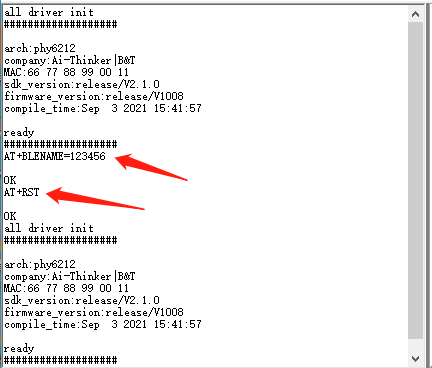
In order to facilitate the test, you need to send AT+BLENAME=123456 and AT+RST commands to set the broadcast name of the module to 123456, and open the PHYOTA software to search

Search for the Bluetooth device named 123456, click the stop button in the upper right corner, select the Bluetooth device named 123456 and click OK to enter the OTA upgrade interface

Click to select the file, if the file column is empty, you can put the OTA file on WeChat or QQ, click the hex file to select other applications, find the PHYOTA software, open it and you can successfully get the HEX file, select the corresponding HEX file and click Start upgrade
